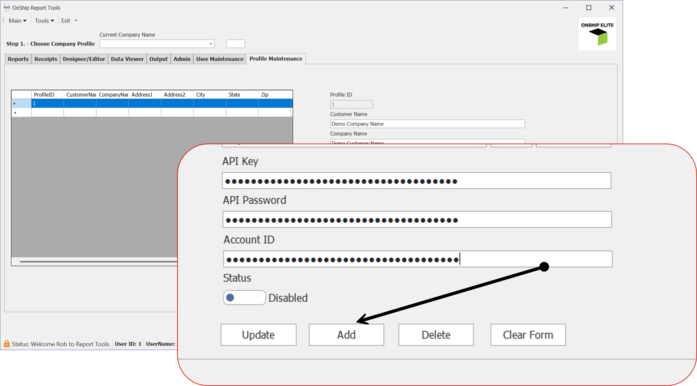
Adding Company Profiles
Company Profiles are setup for each account/digital wallet.
|
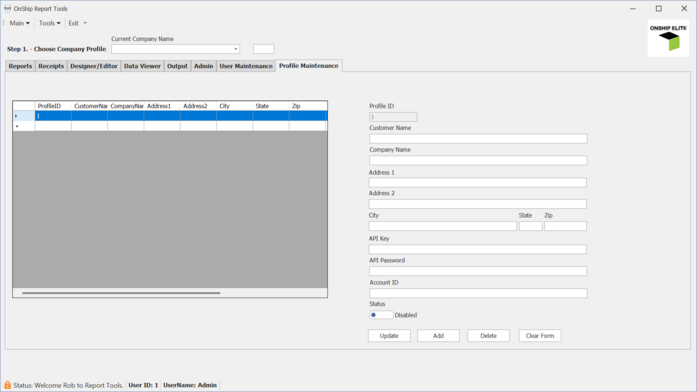
Company Profiles contain:
|
Adding Company Profiles
The API Key and Password are found by logging into your OnShip Account.
|
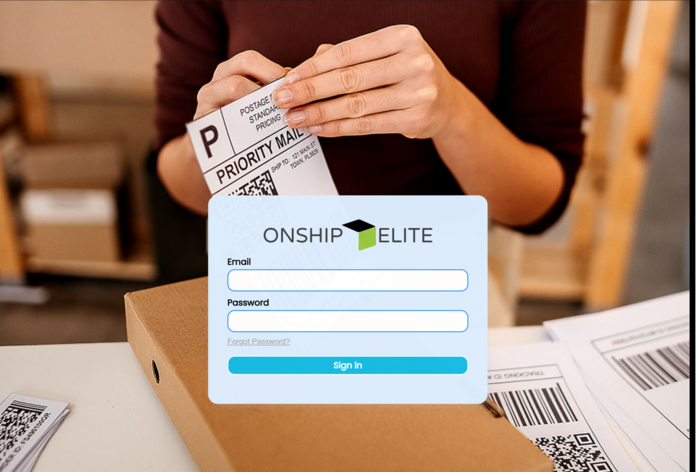
Once Logged in Select the Company Name.
|
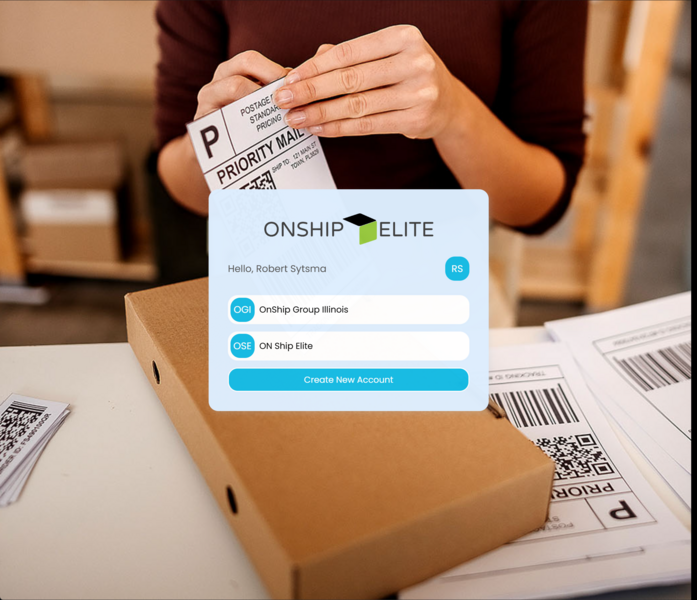
Click the Company Name in the Top Right Corner and select Manage Profile.
|
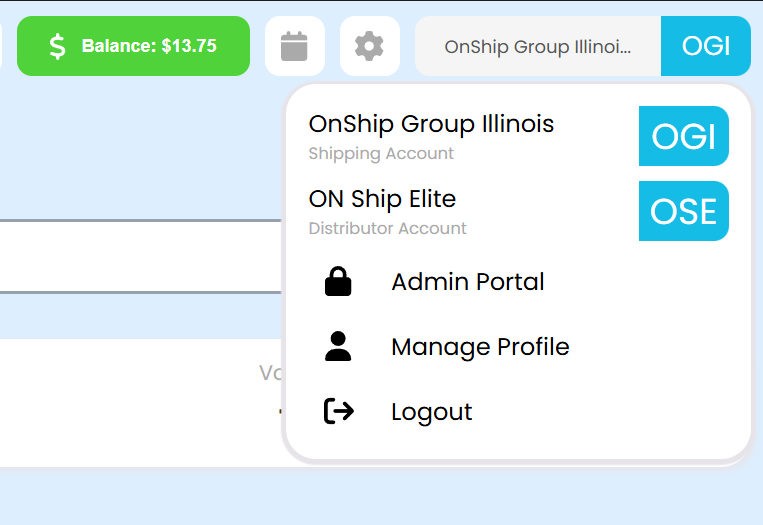
From the Left side Menu click API Keys
|
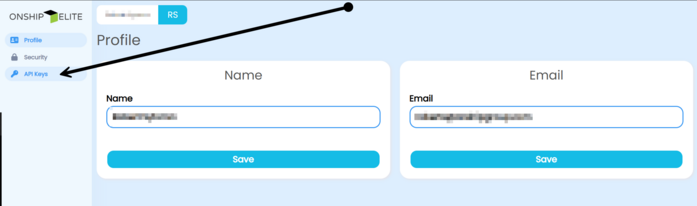
On the right side of screen click the Add API Key button
|
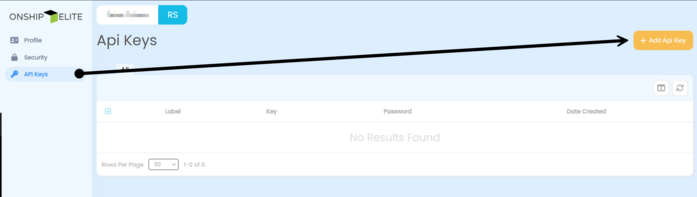
Enter a unique Name in the Key Name Field and Click the Add API Key button
|
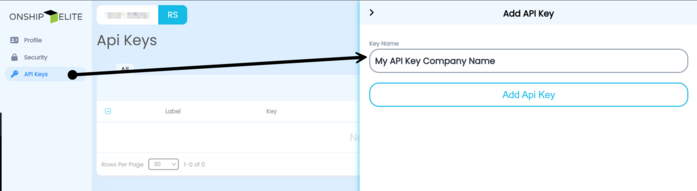
This will genarate and API key and Password.
|
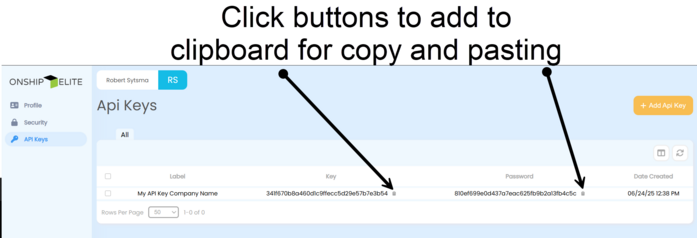
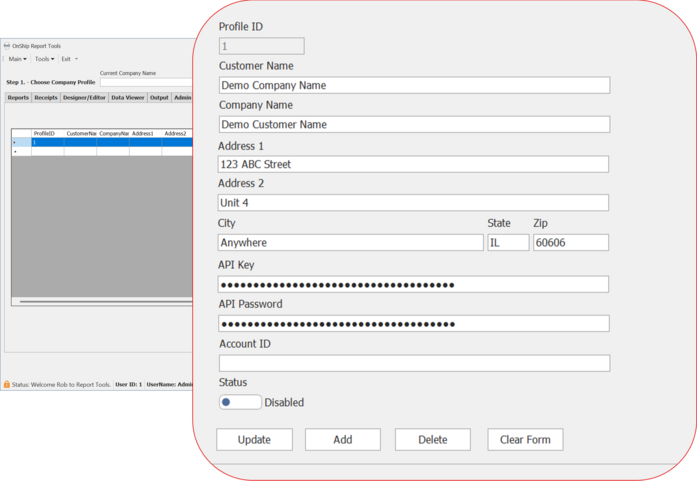
Copy OnShip Elite "Key" to clipboard and paste into Report Tools Form field "API Key" then,
copy OnShip Elite "Password" to clipboard and paste into Report Tools Form field "API Password".
|
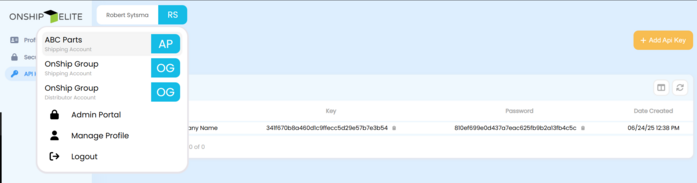
The Account ID can be found in the following area.
Click the Name on the top left side and select the correct company name
(Each company name will have a unique account number, if you have multiple accounts each account will need to entered in a Profile)
|
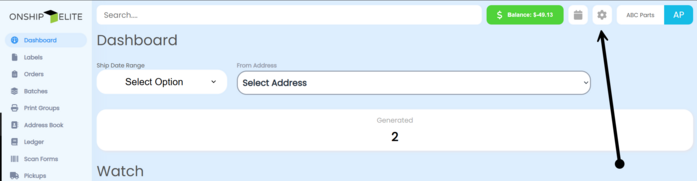
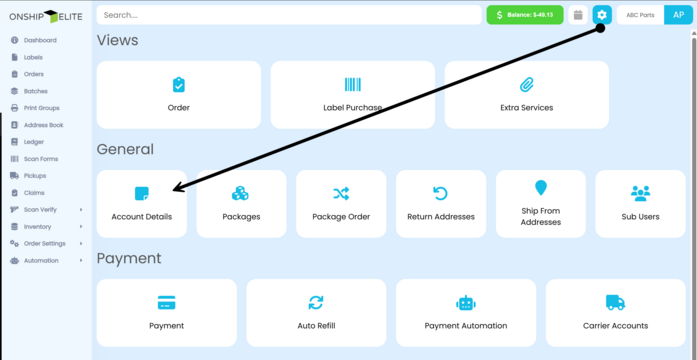
Click the setting cog at top right corner.
|
Click the "Account Details" button in the "General" section
|
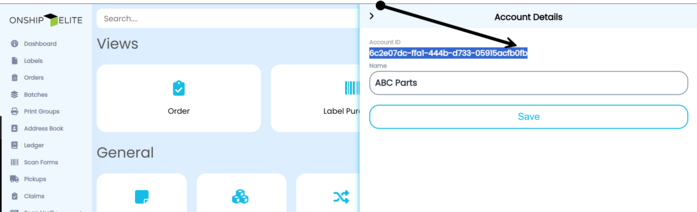
place mouse over the account id and click 3 times fast this will highlight account id - right click and copy or use
CTRL + C to copy the account ID to the windows clipboard.
|
Paste the Account # into the Report Tools Profile Form field
|
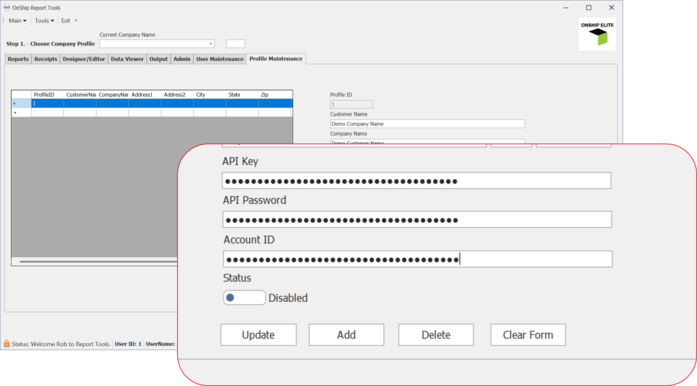
Once all fields are filled in click the Add Button on the Form.
This will add the company to the profiles.
|