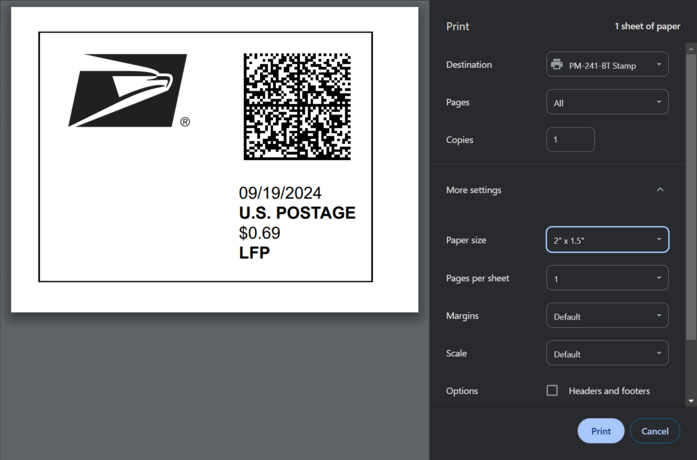
How can I print a USPS 1st class stamp
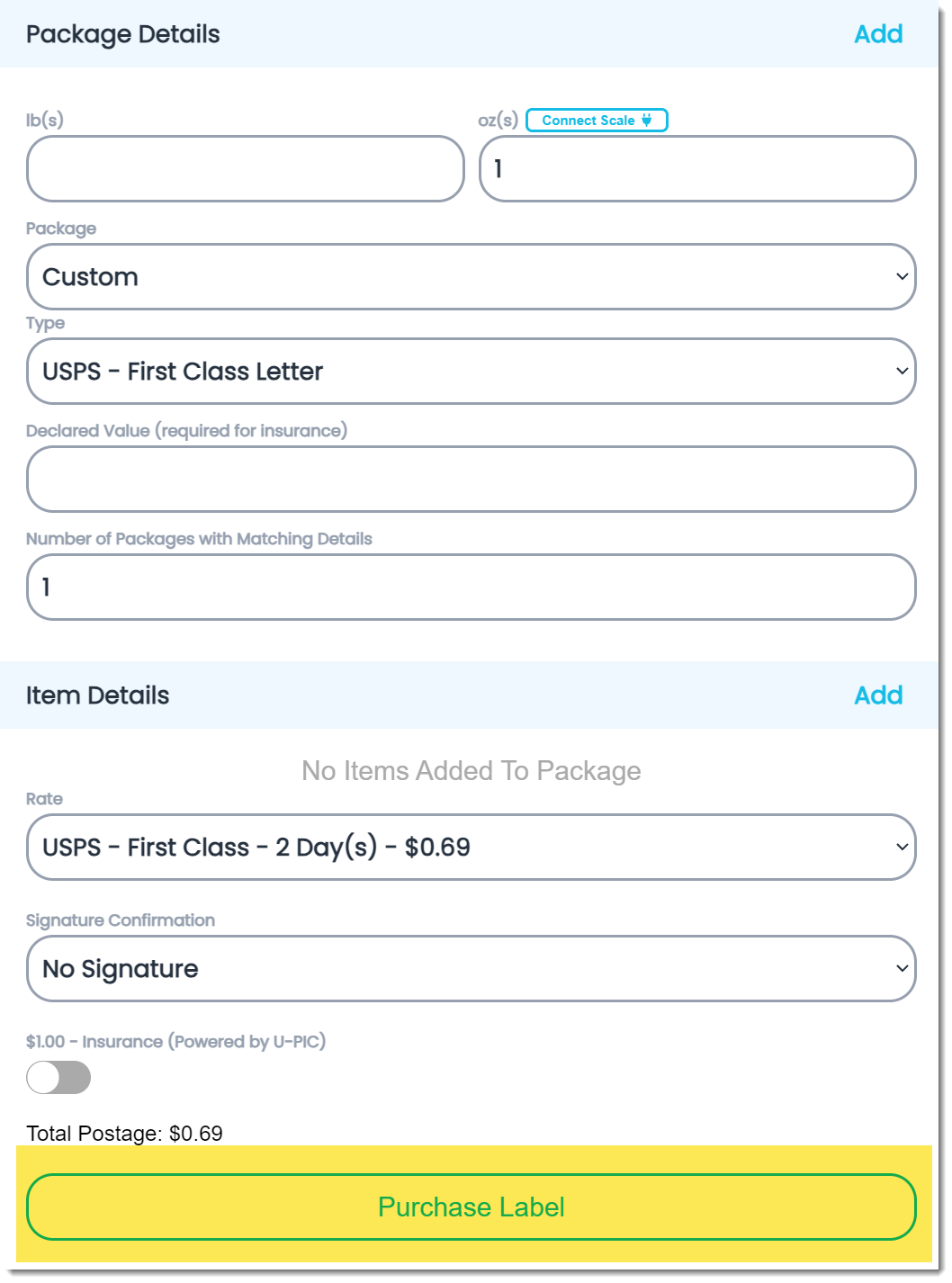
From the "Labels " section on the left hand side, find and click the "Purchase Label" button
|
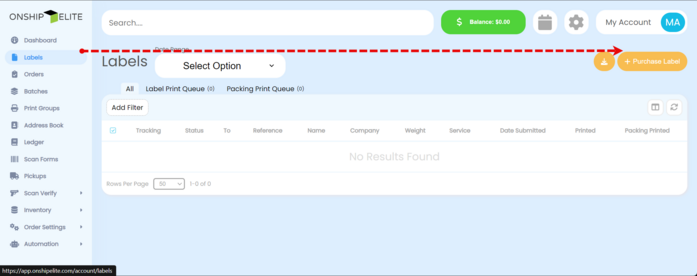
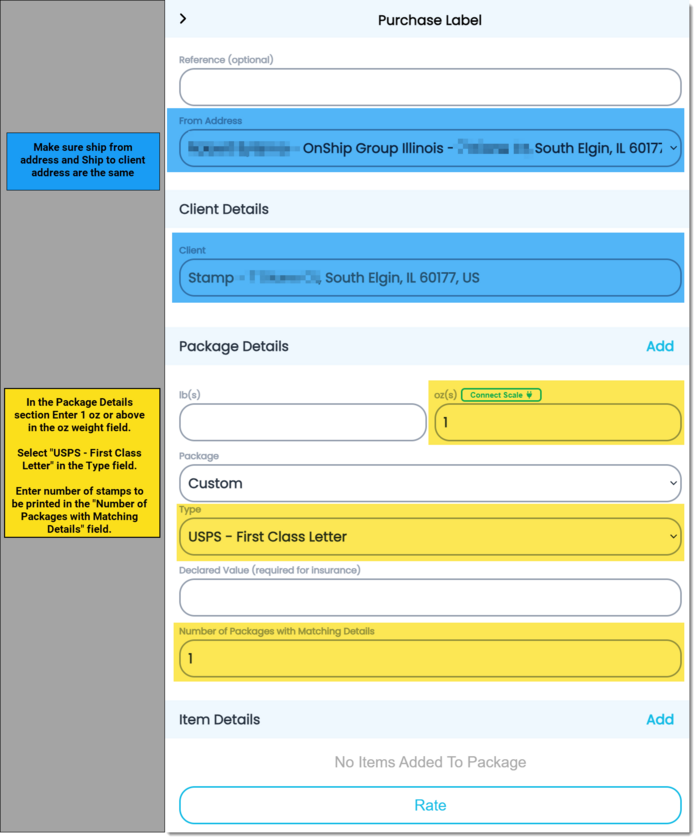
On the "Purchase Labels" section make sure that the "From Address" is the same as the "Client" Address.
Enter 1oz or above for First Class Lettter Stamp - The number of packages field is the number of stamps to be printed.
You can add an address in the address book with the name Stamp as a shortcut for future printing of stamps.
|
.
Under the "Item Details" section click the "Rate" button to show rate.
|
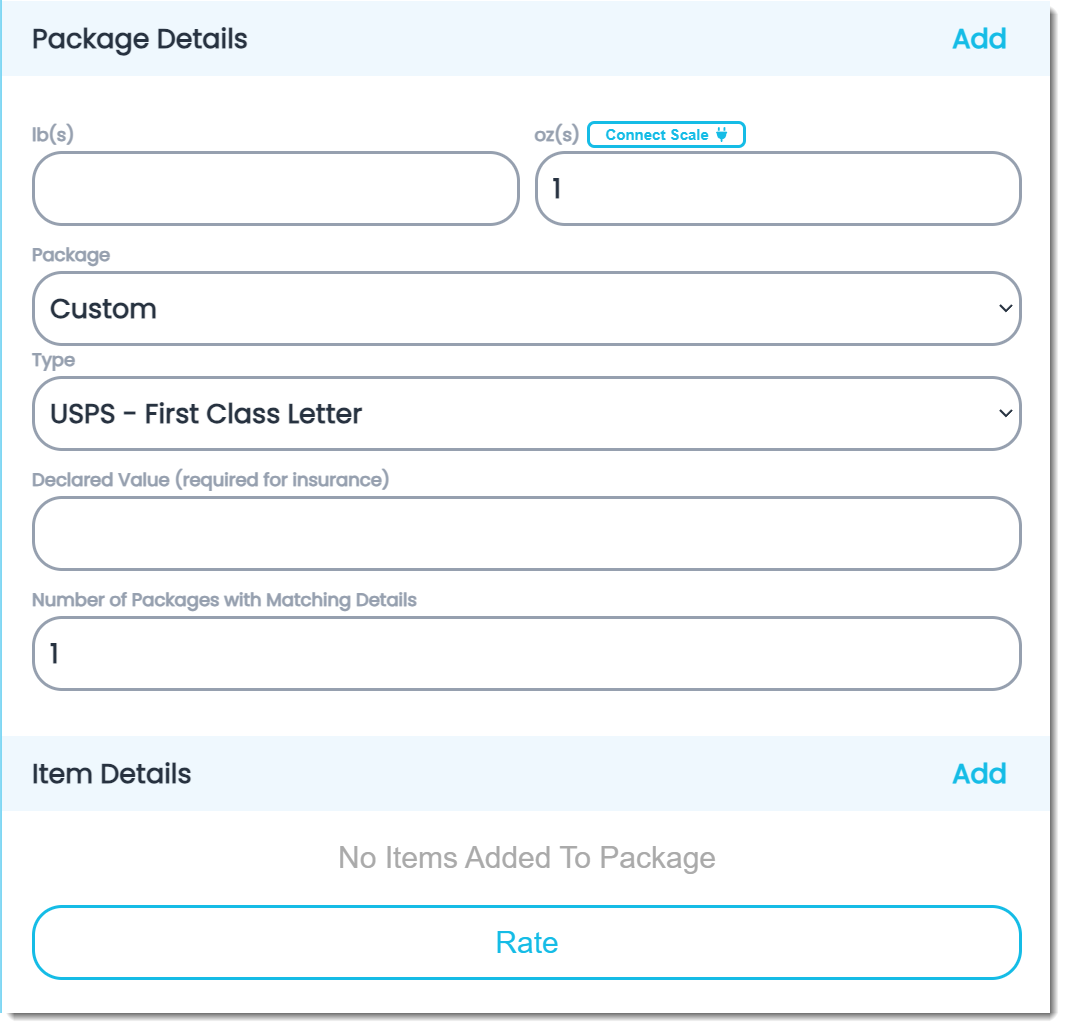
Click the "Purchase Label" button under the "Item Details" section
|
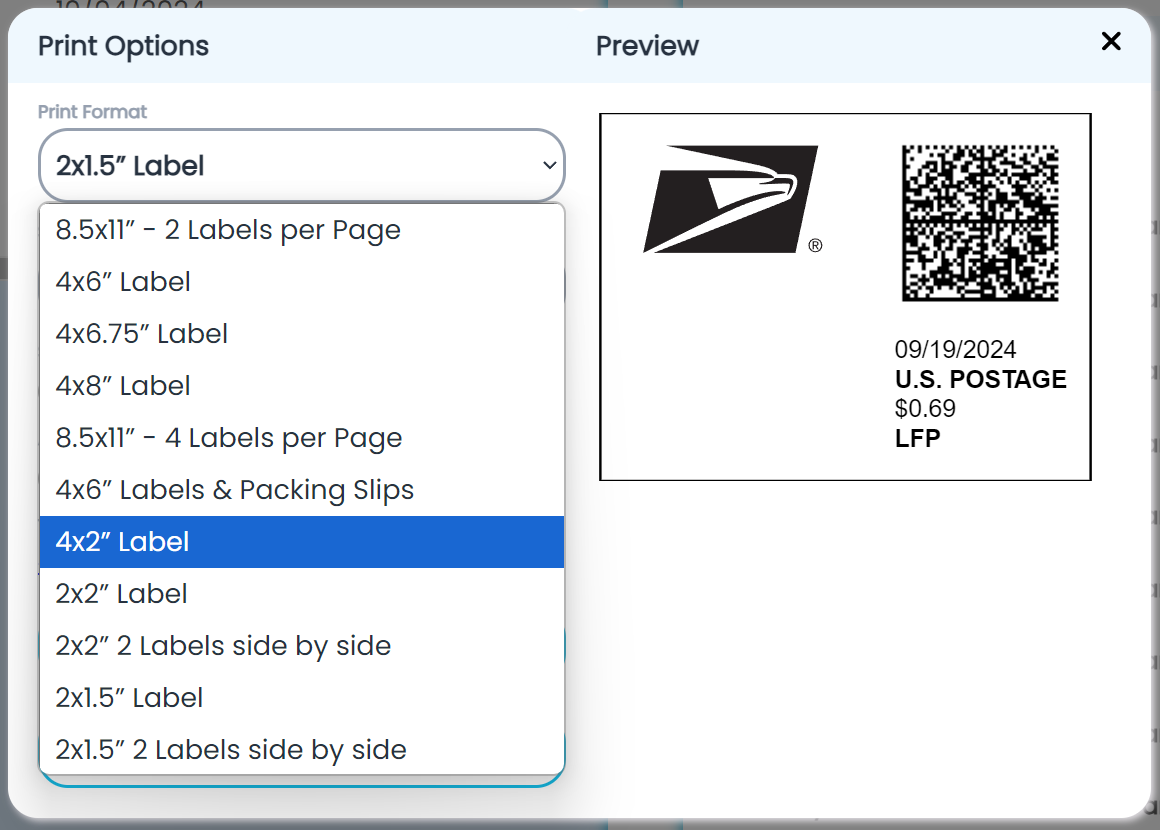
In the Print Options section select the correct label size.
Current label sizes are 4"x 2", 2"x 2", 2" x 1.5", 2"x 2" (2)labels side by side , or 2" x 1.5" (2)labels side by side
|
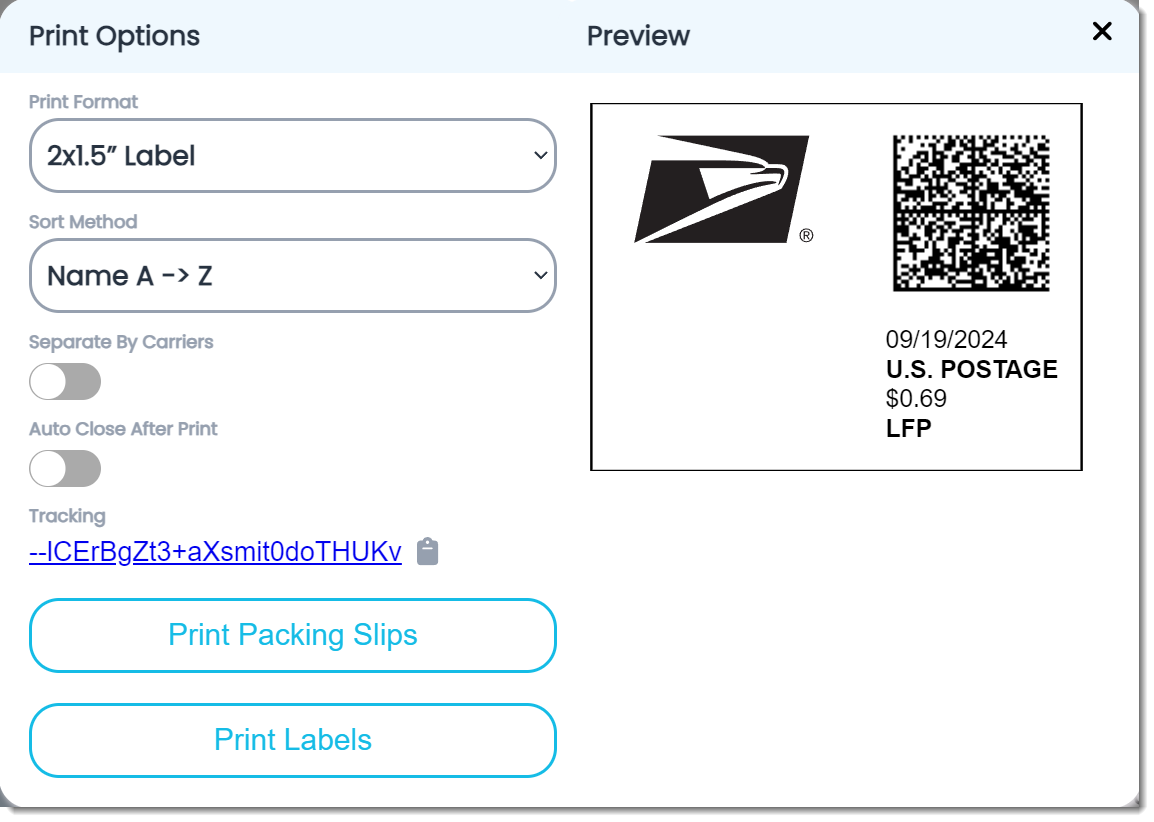
Click the "Print Labels" button to select the correct printer
|
Select the correct printer under the Destination field.
Under the "More Settings" area make sure proper label size is selected.
This should be the same size as what was selected in the print format area.
Make sure margins in set to default and scale is set to default.
|