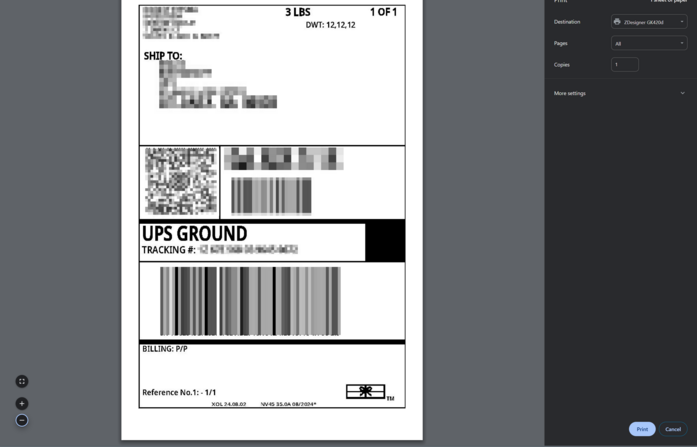
Rating a Package / Purchase a Label
Video of steps taken
|
To rate a package a get a shipping cost click "Labels" on the left side menu
|
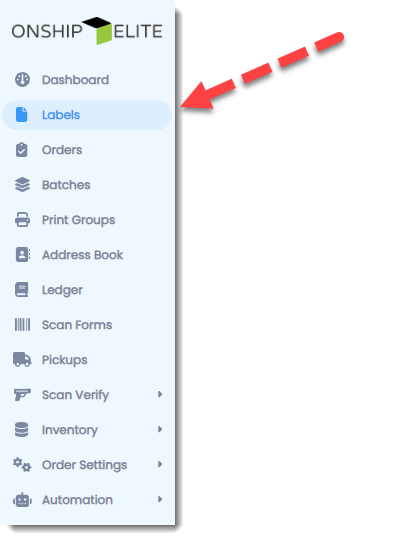
On the Right Side of screen click the "Purchase Label" Button
|

Click "Labels" on the left side menu and fill in necessary details
|
-- Purchase Label Fields --
|
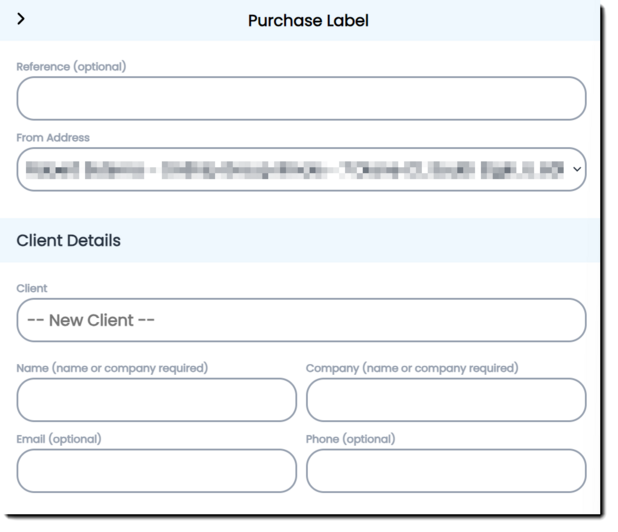
-- Address Details Fields --
|
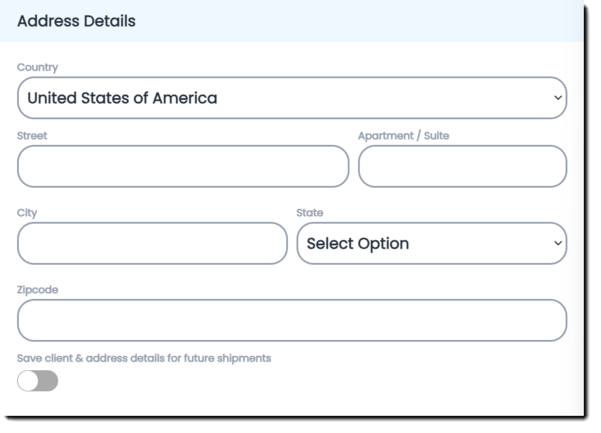
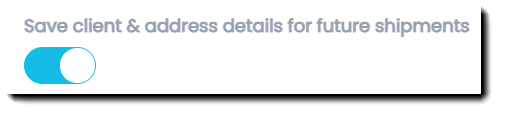
Save Client option switch - if turned on will save Client details and Address details to address book
|
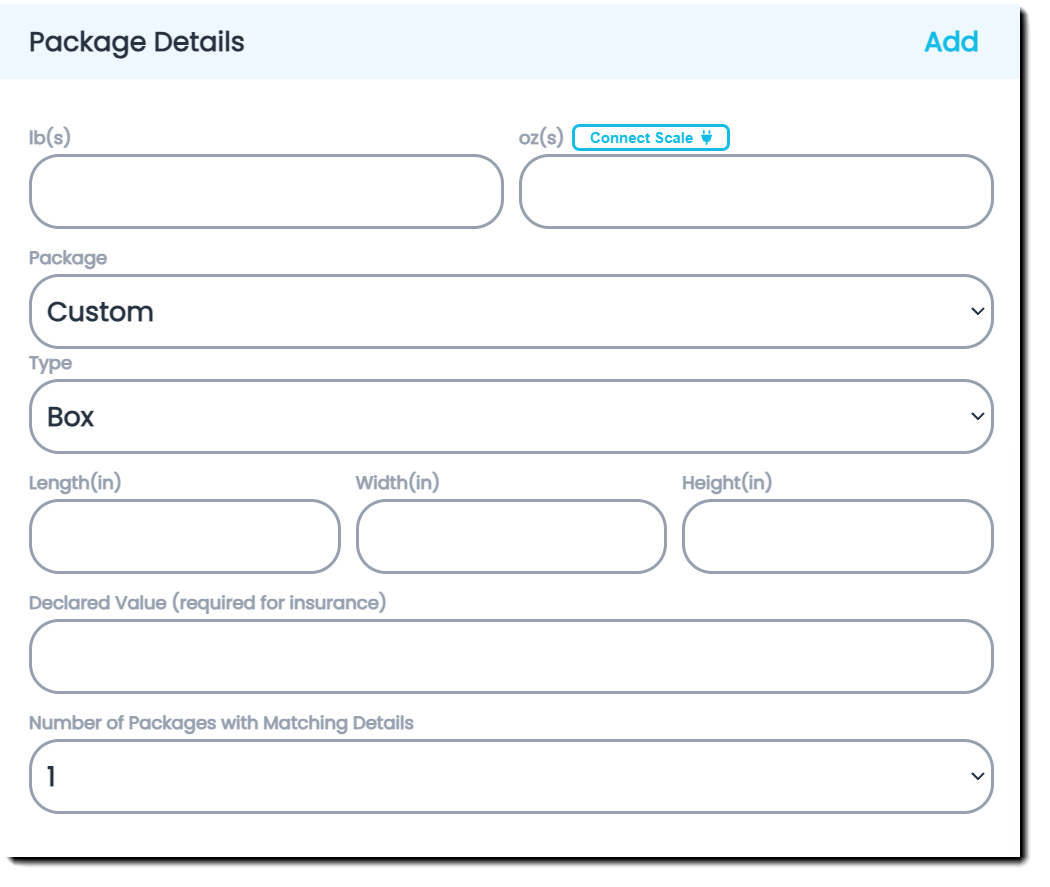
-- Package Details Fields--
Clicking "Add" generates a multi-package shipment
(Package Details need to be entered in for all packages in shipment)
|
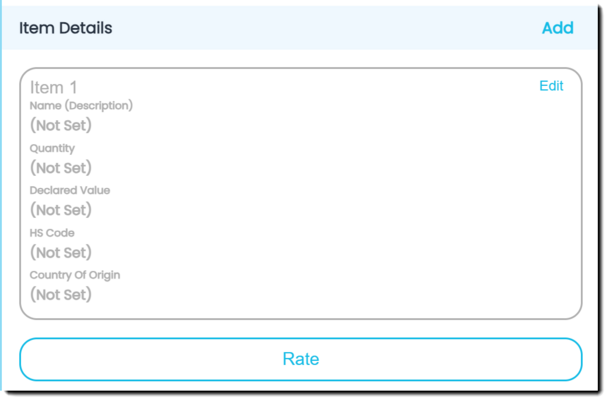
-- Item Details --
Clicking "Add" to add items to Packing List or items to international shipments customs forms
Once you click add you will see it add an item (See below)
Click "Edit" to enter the details
|
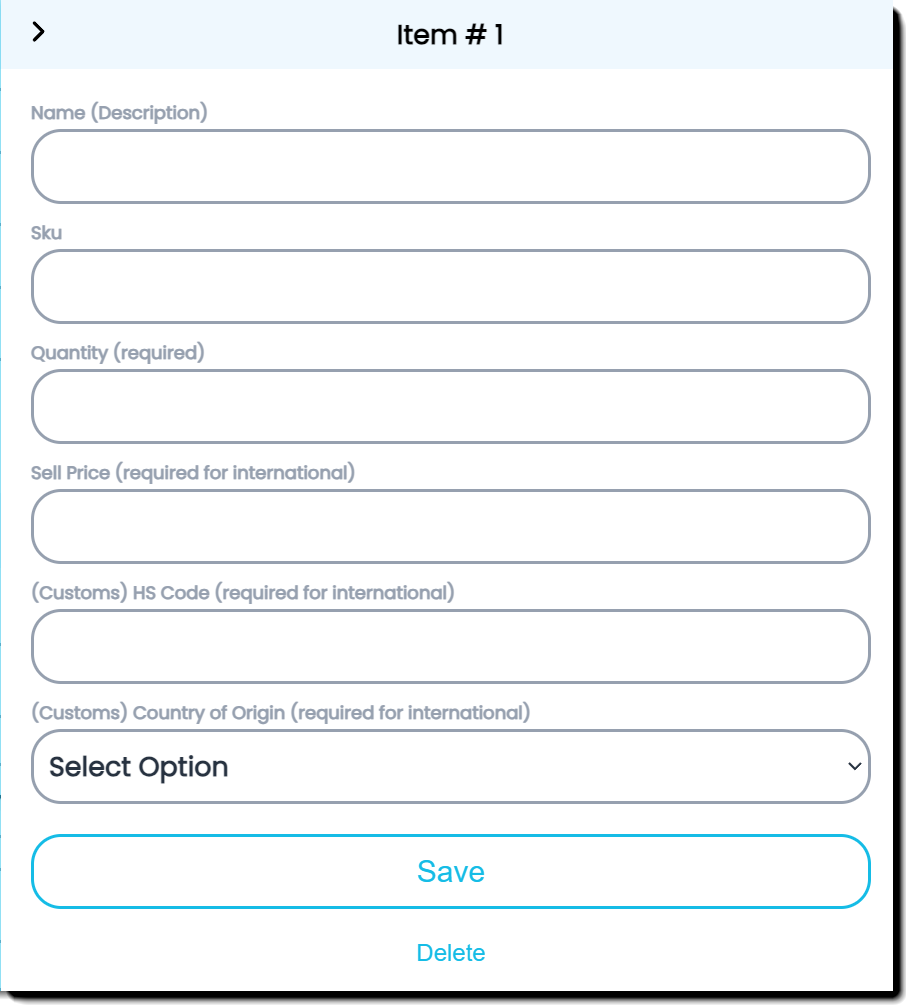
-- Item Details -- (Enter Item details and click Save)
|
Click "Rate" button
|
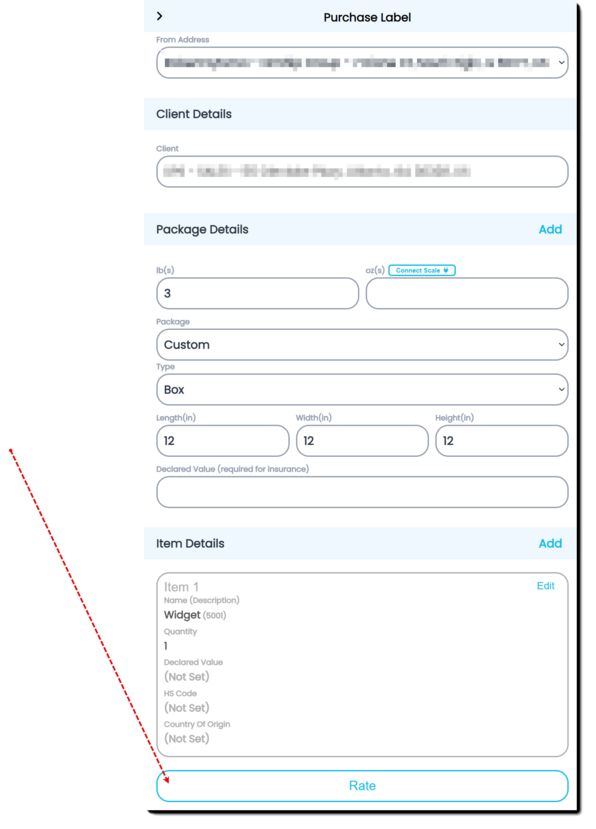
Rates will appear in drop box Ascending (lowest to highest) order
The number of days carrier will take to deliver is displayed along with the cost
Select the Rate you want and click the "Purchase Label" button
|
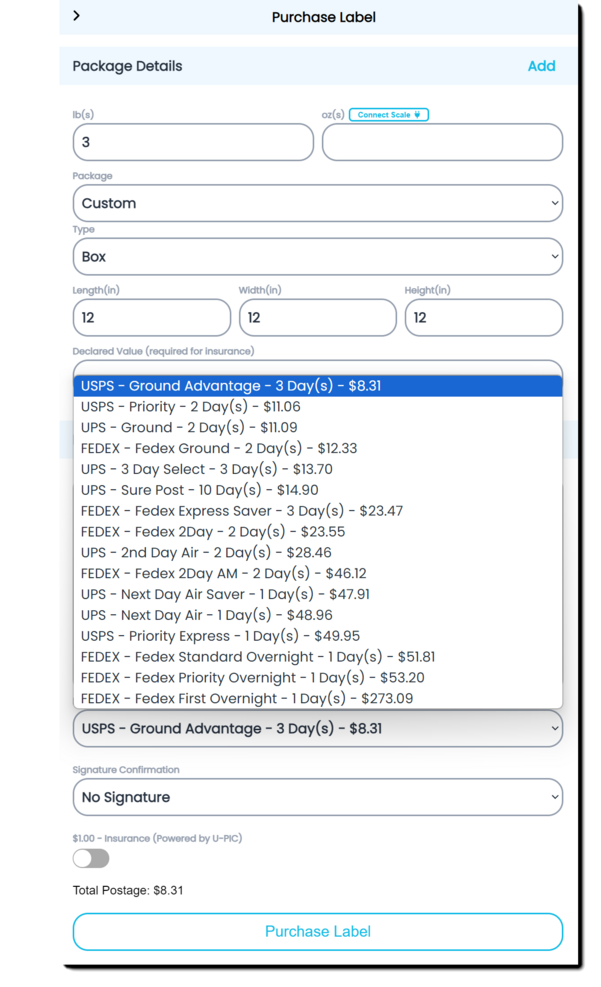
Select the Rate you want and click the "Purchase Label" button
Select the Print Format 8.5x11 or 4x6 label and
print the shipping label or Packing Slips
|
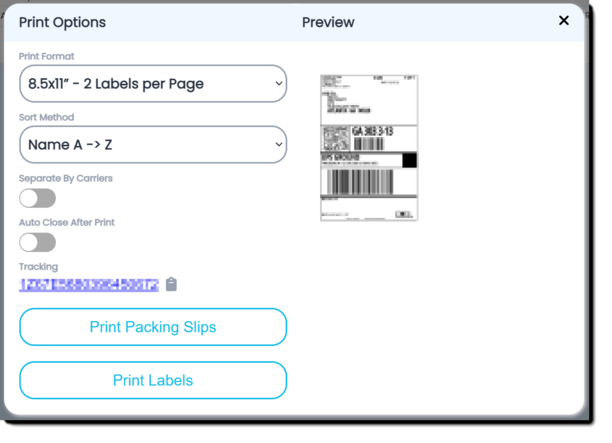
Select the windows printer and click the Print button
|